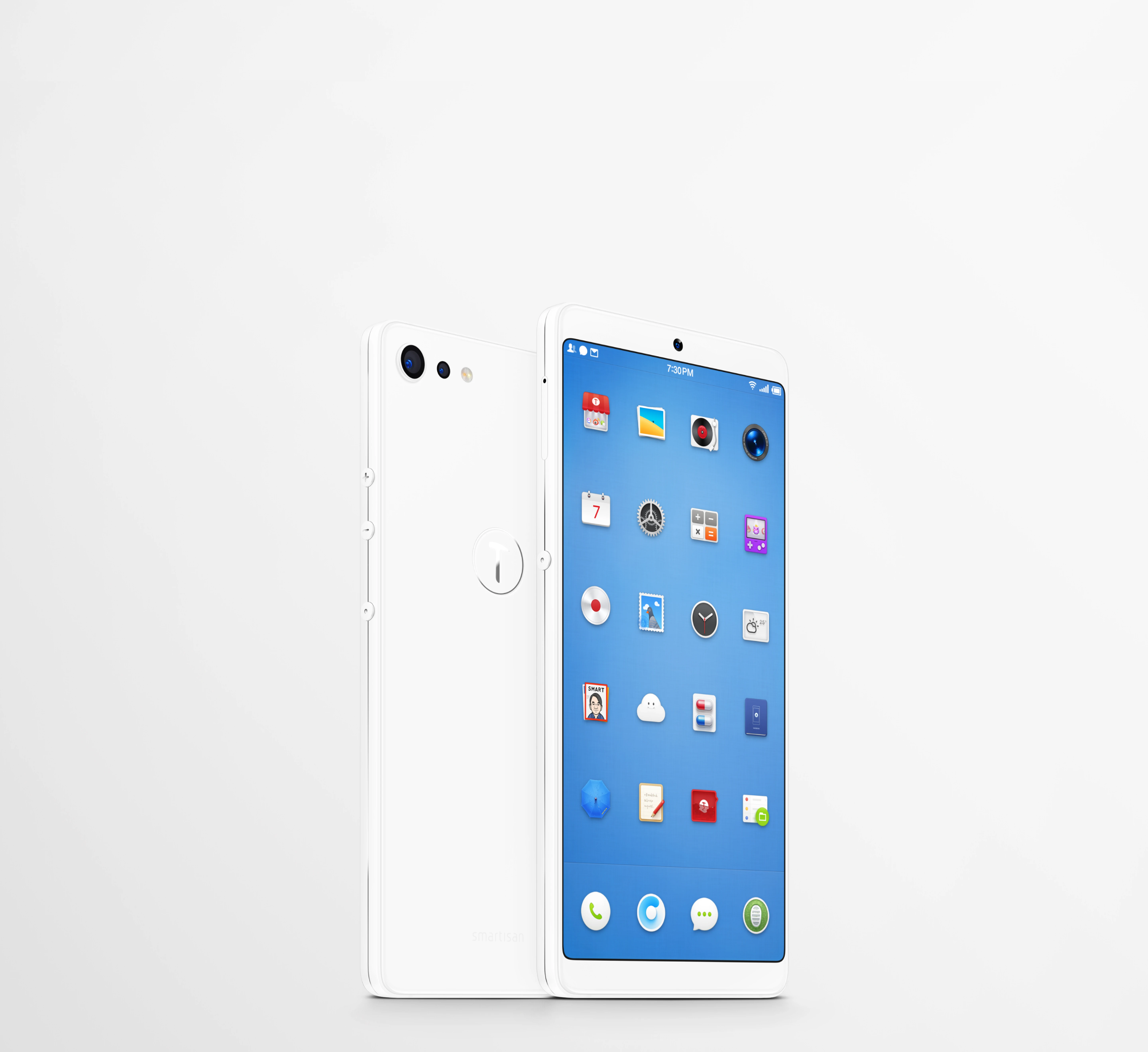

Smartisan OS 6.6.6 application design
Smartisan OS
Work Experience
Contributed to System Camera, Gallery, Screen Recording, Notes, and TNT Workstation
Built a deeper understanding of system design patterns and workflows, and helped create a Sketch component library to improve team efficiency
[1] System Camera
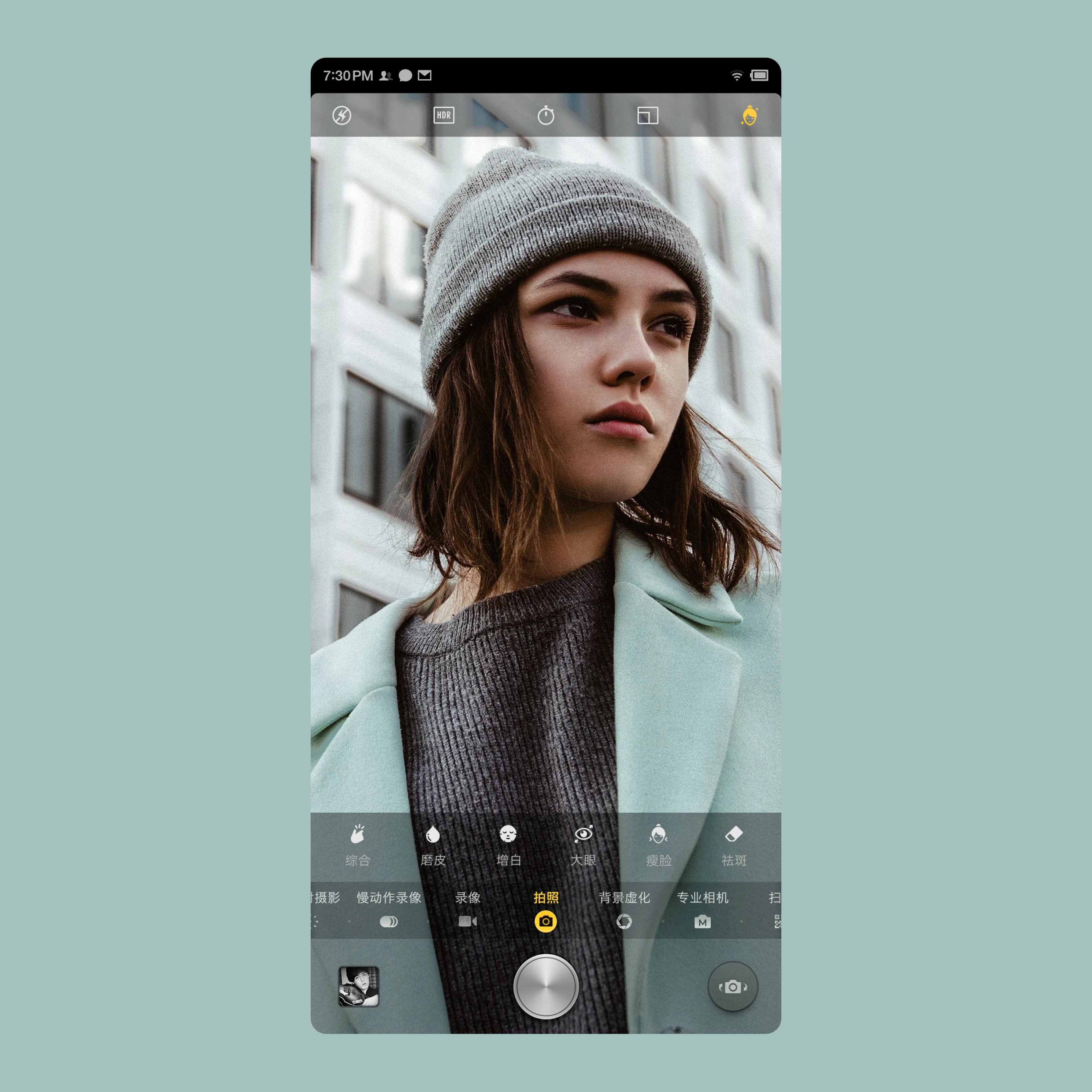
Combined advanced algorithms to deliver a better photography experience
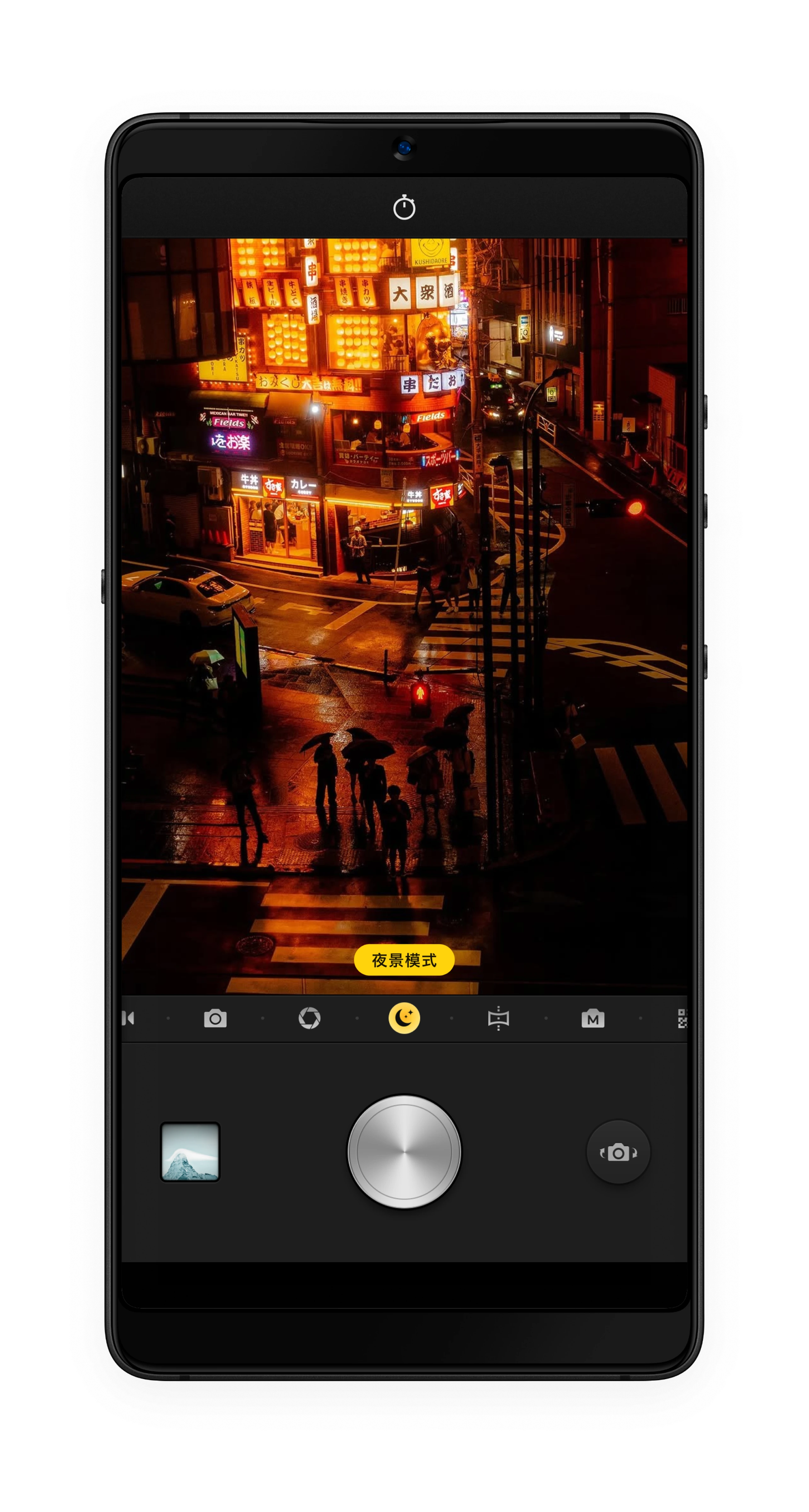
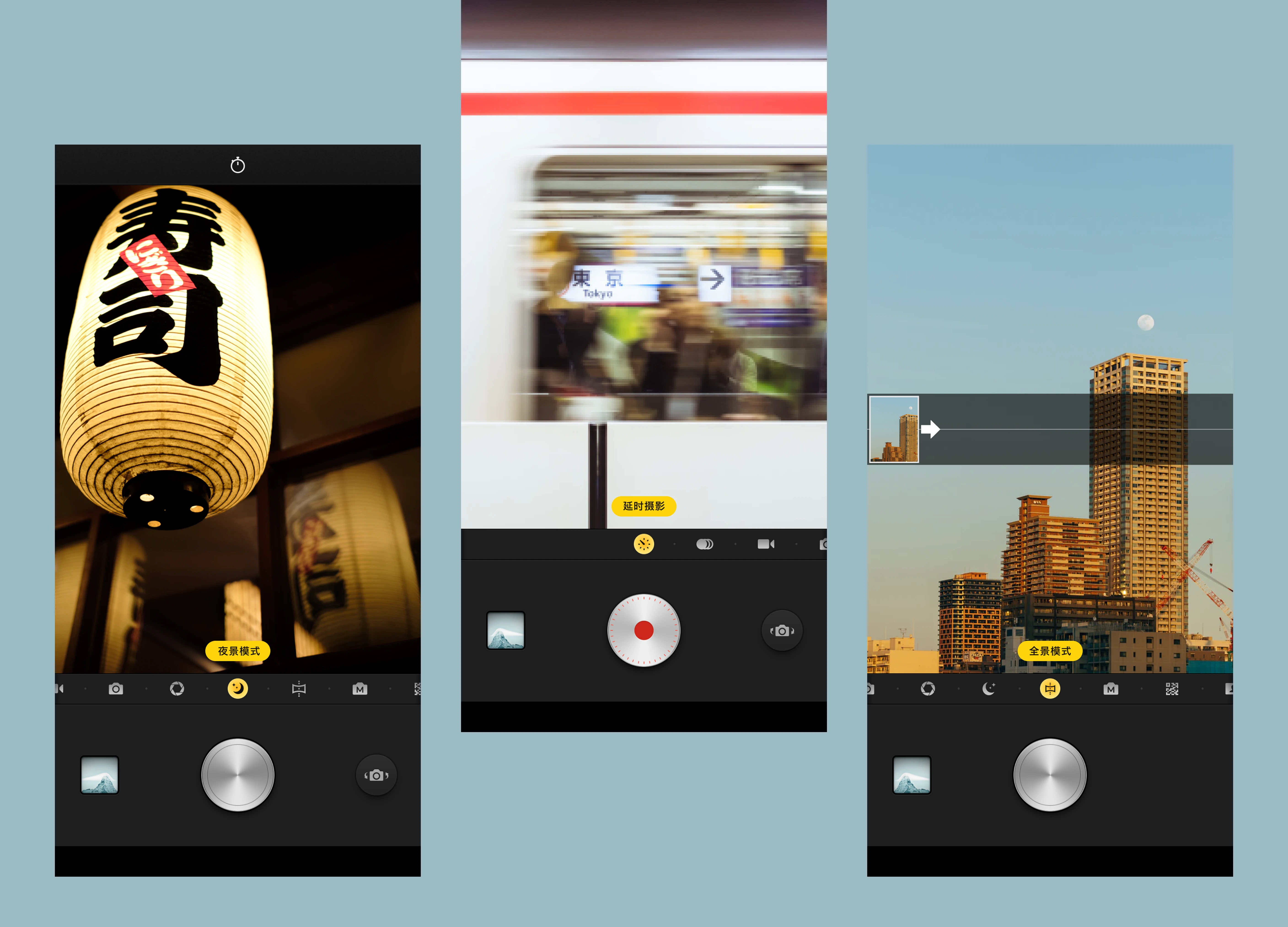
Night mode
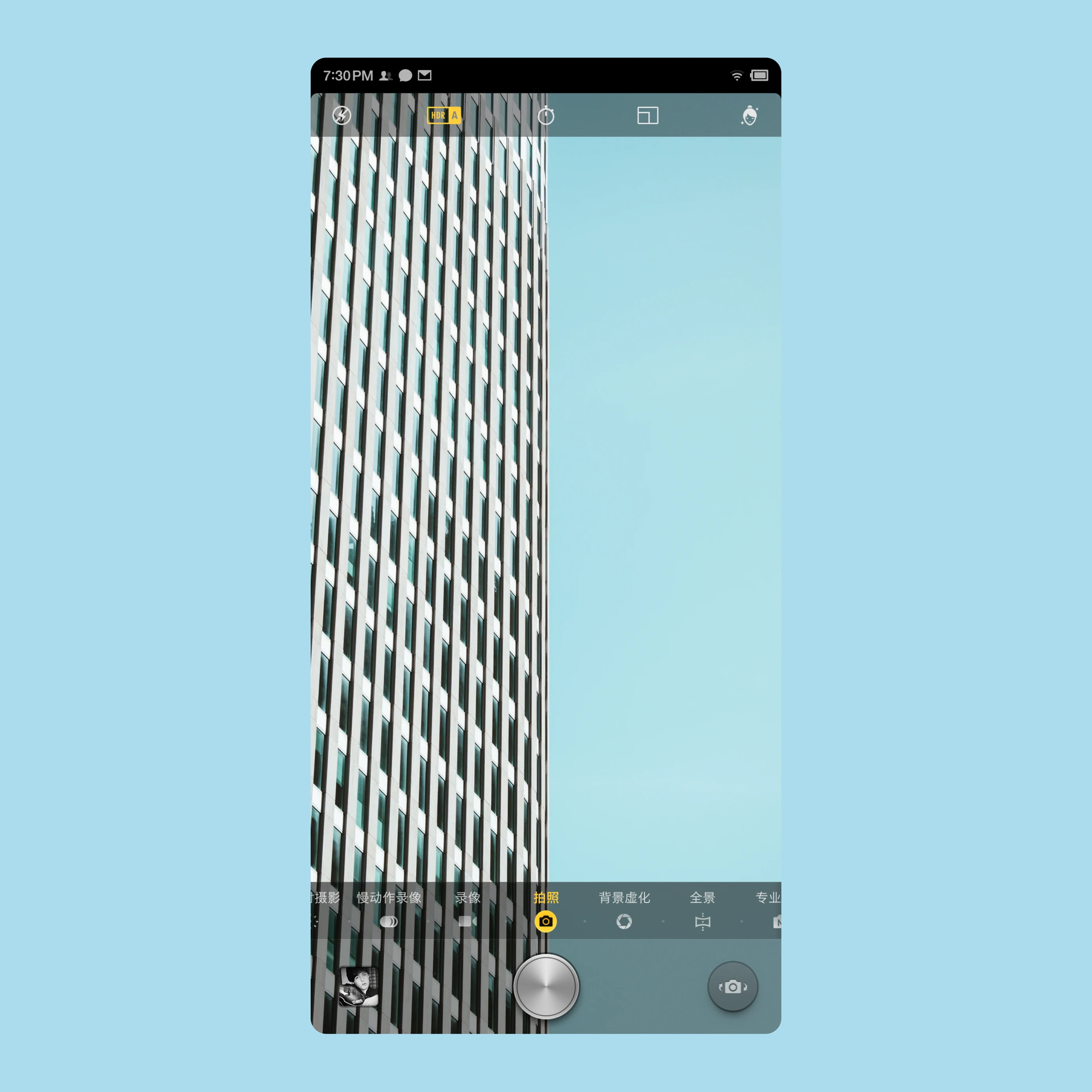
Smartisan OS Camera combined advanced algorithms across video, night, selfie, and large-aperture scenes to deliver a better shooting experience
2 Features
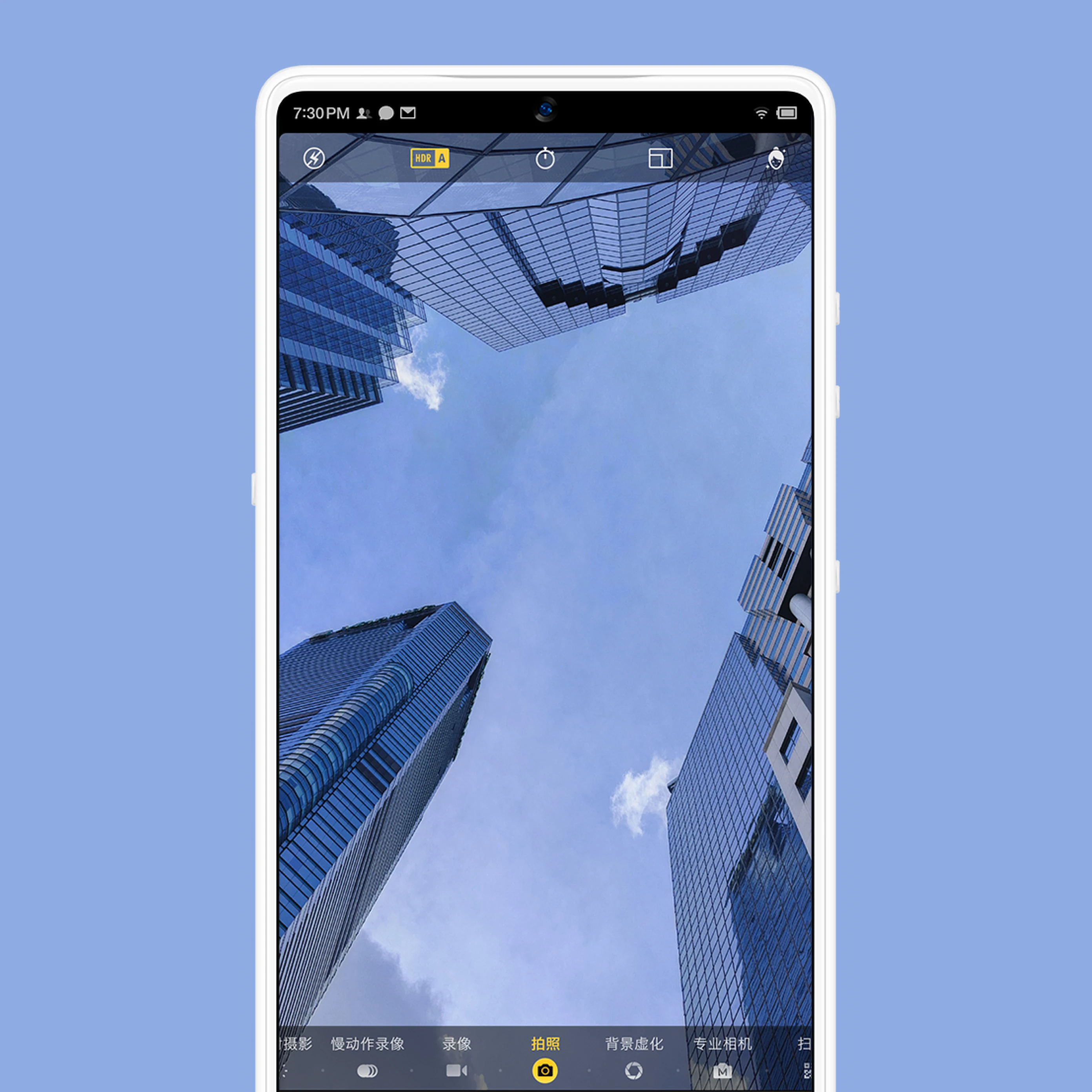
Auto HDR turns on in high-contrast and low-light scenes to preserve highlight and shadow detail
ArcSoft background blur and beauty algorithms improve the final image quality

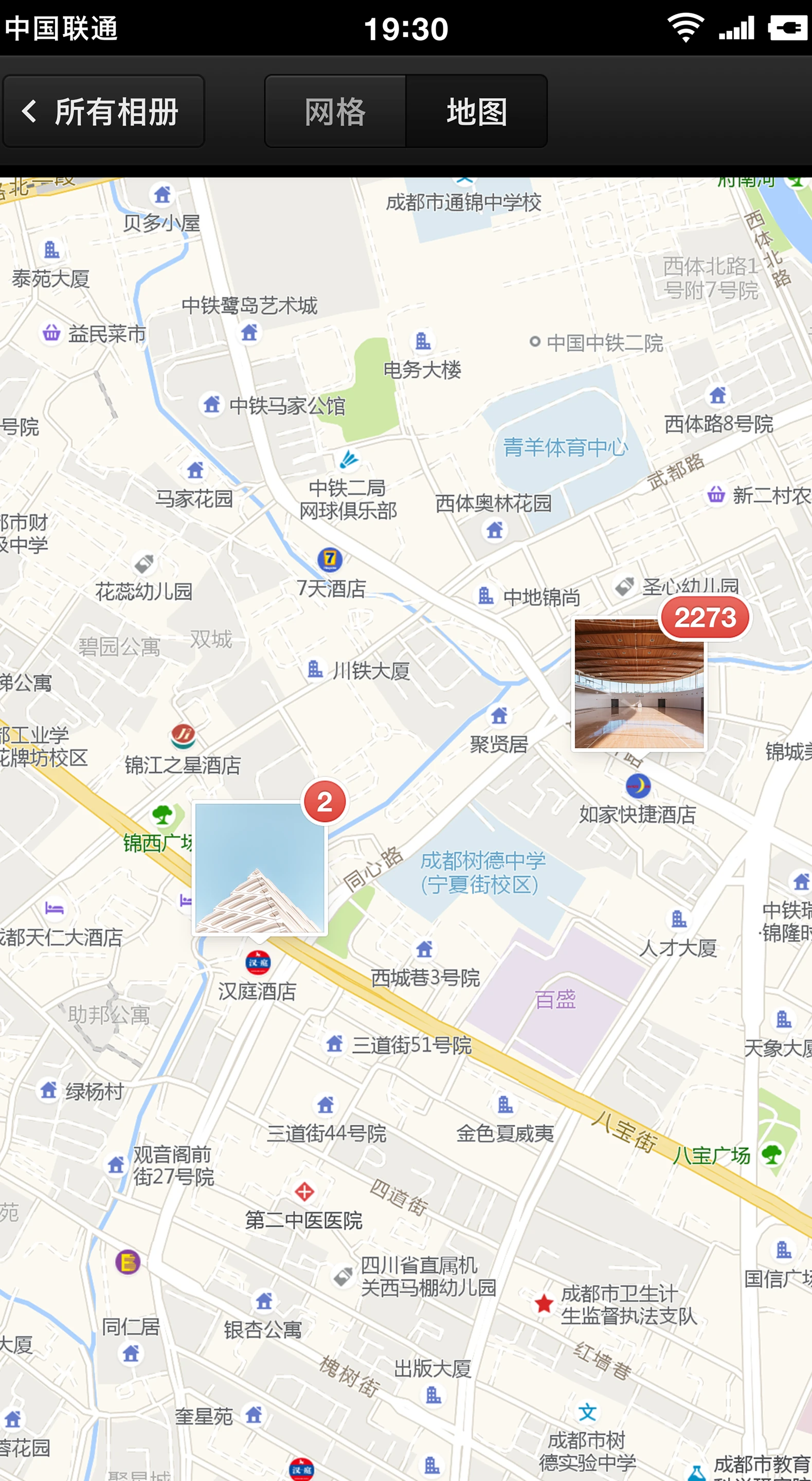
[2] System Album
The camera uses ArcSoft’s smart beauty algorithm to tune color for different faces


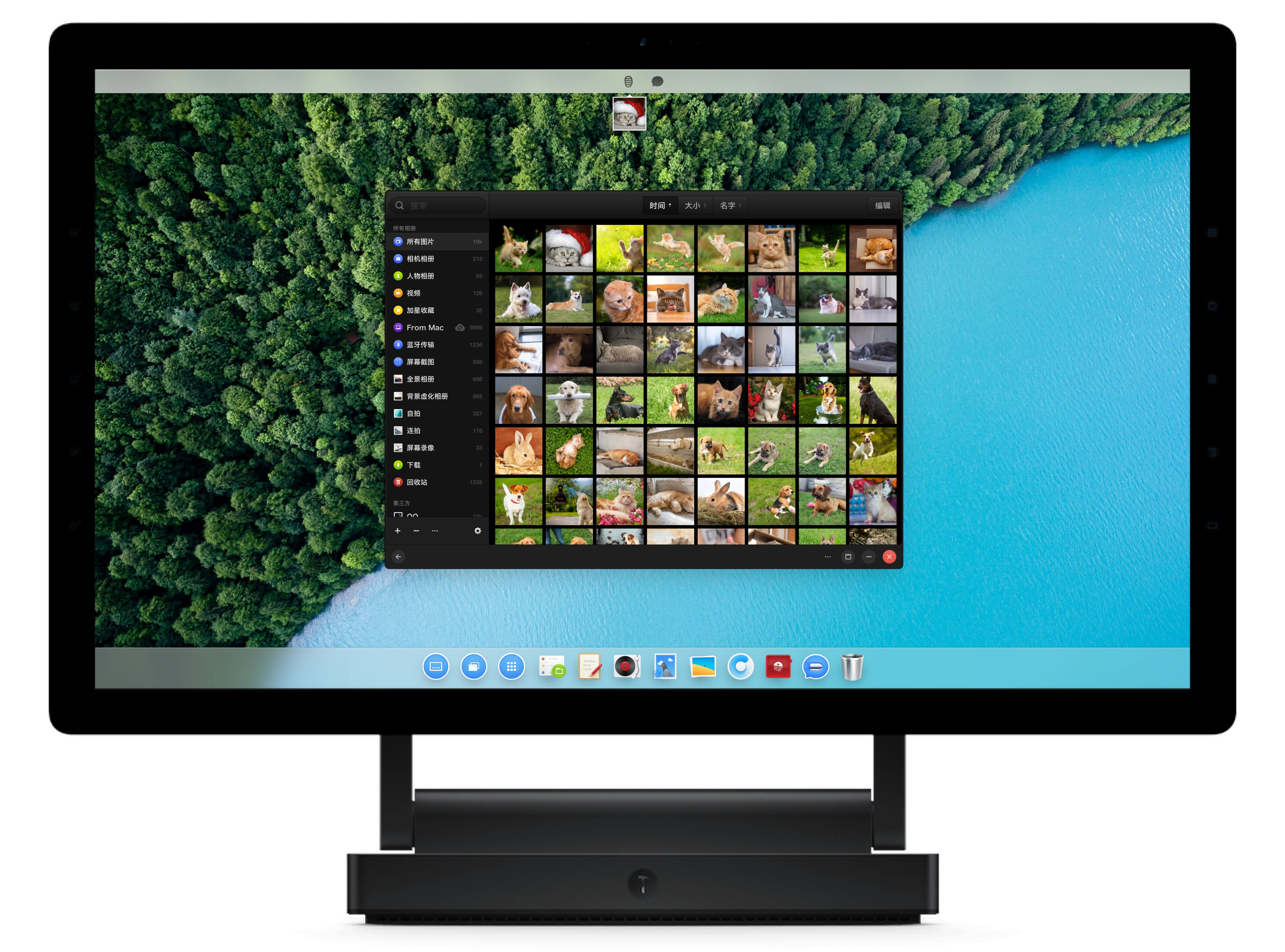
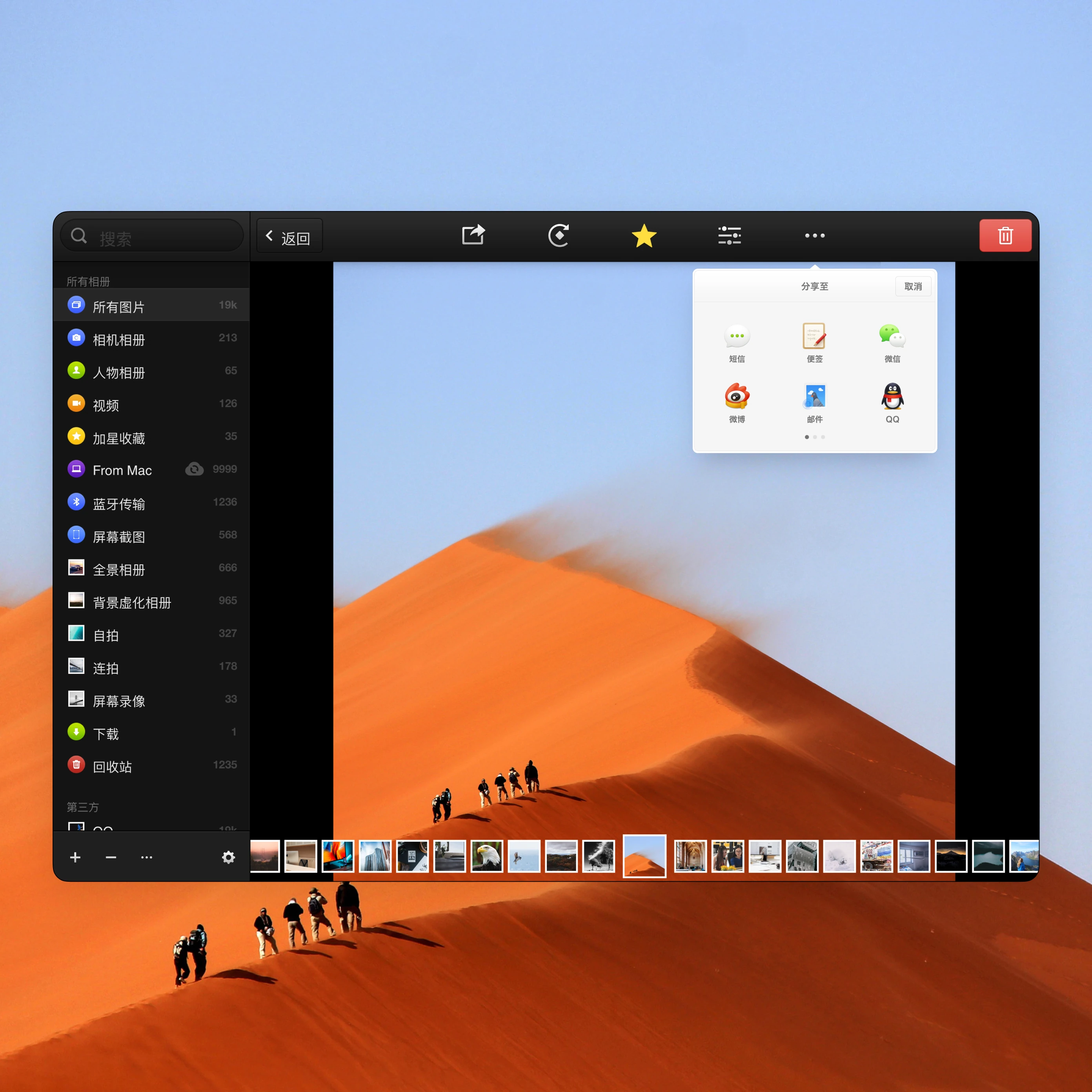
TNT Album
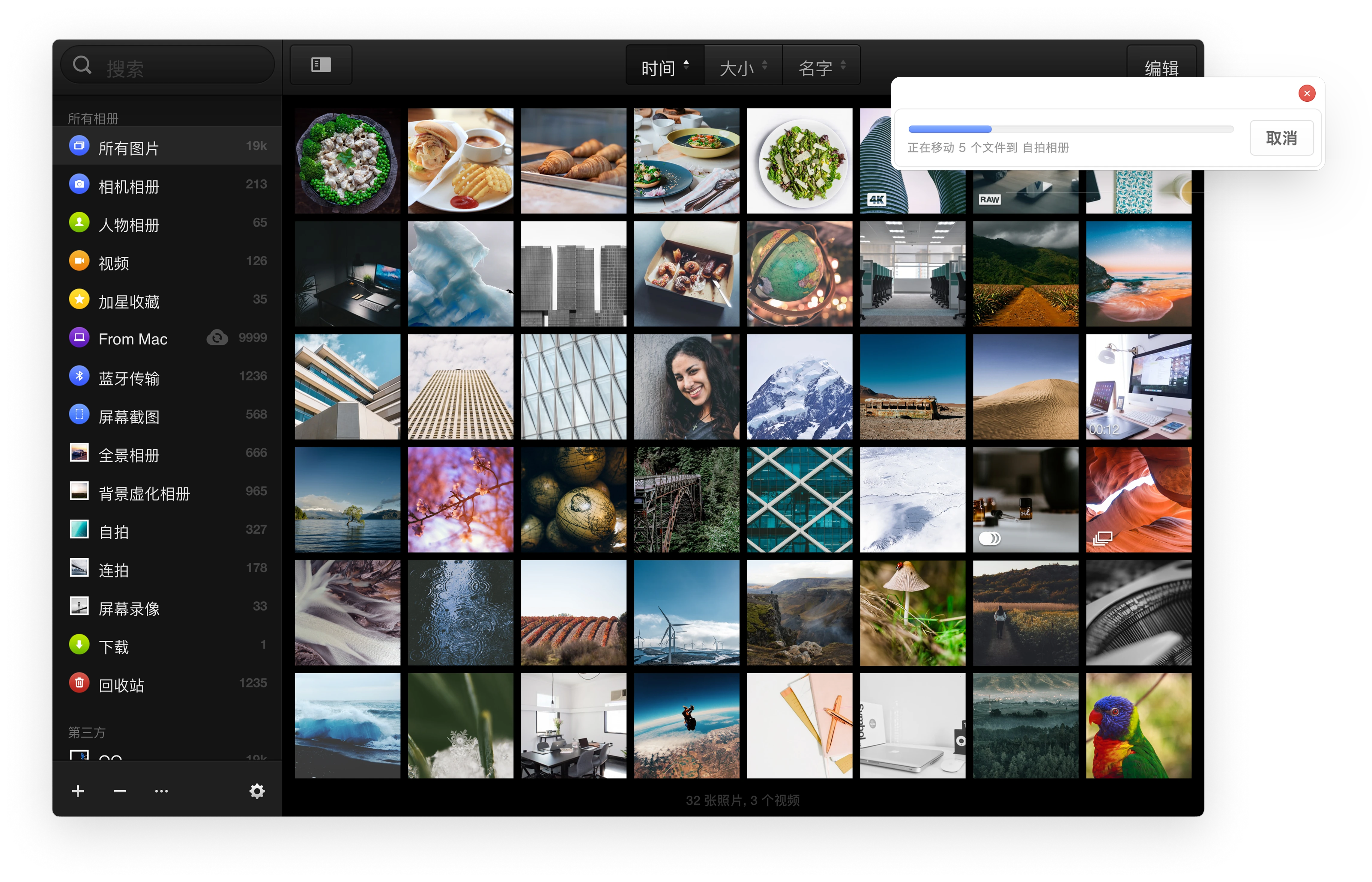
TNT Album uses a two-column structure
The left navigation supports folder management and quick image dragging
The content area on the right simplifies the workflow for fast image viewing and editing
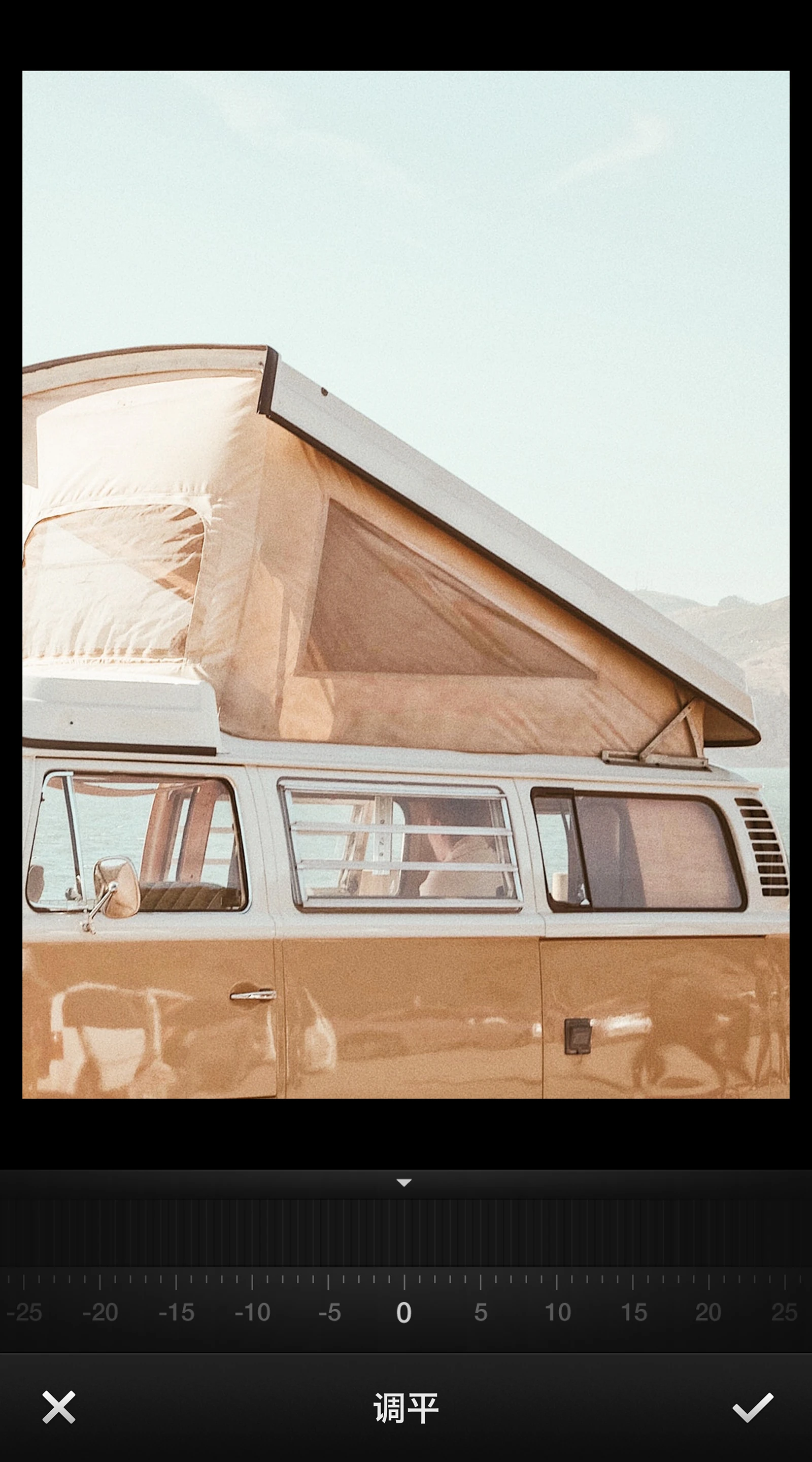
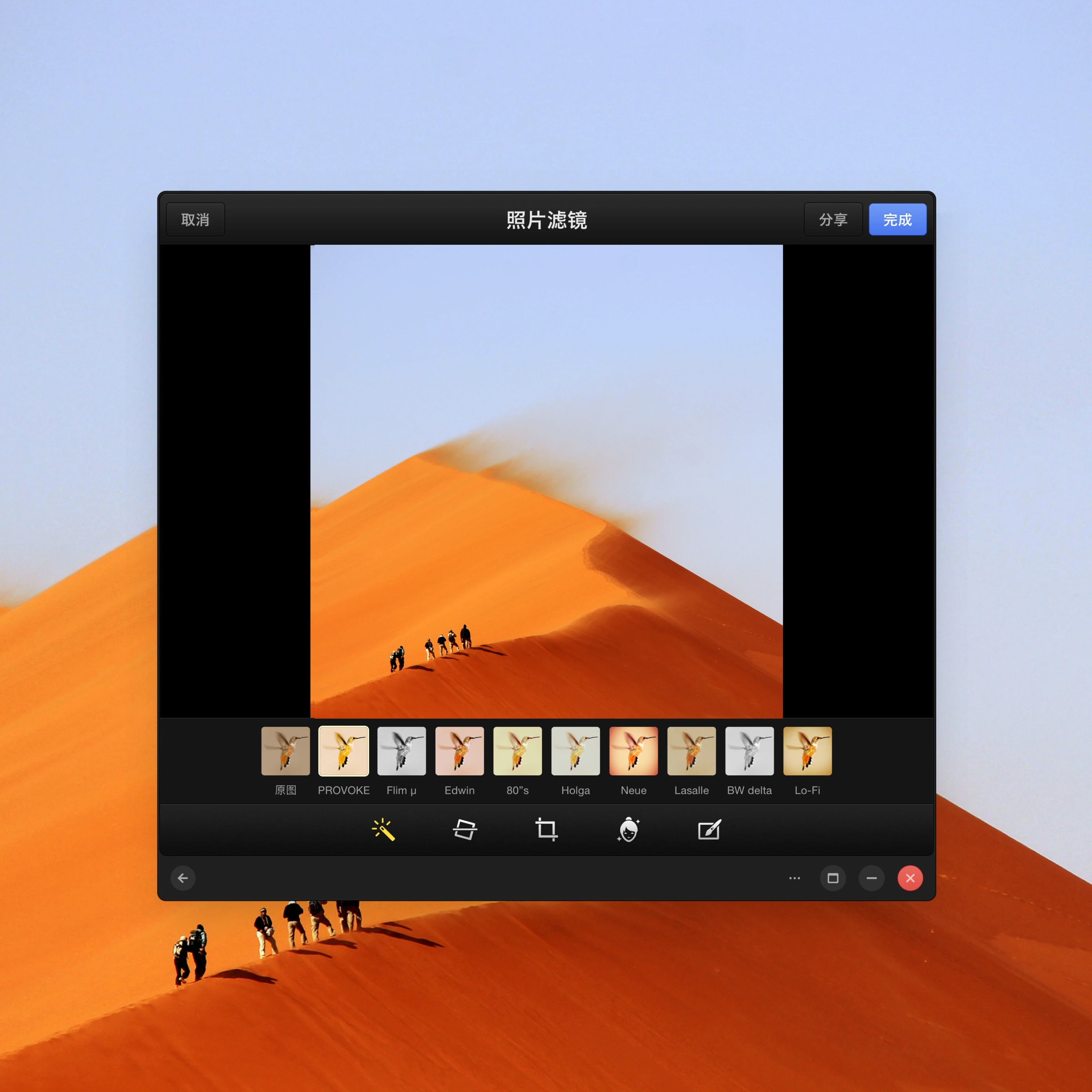
Album Edit Page
The edit page uses a single-column structure that preserves the mobile interaction model and layout, reducing development cost

[3] Video Player
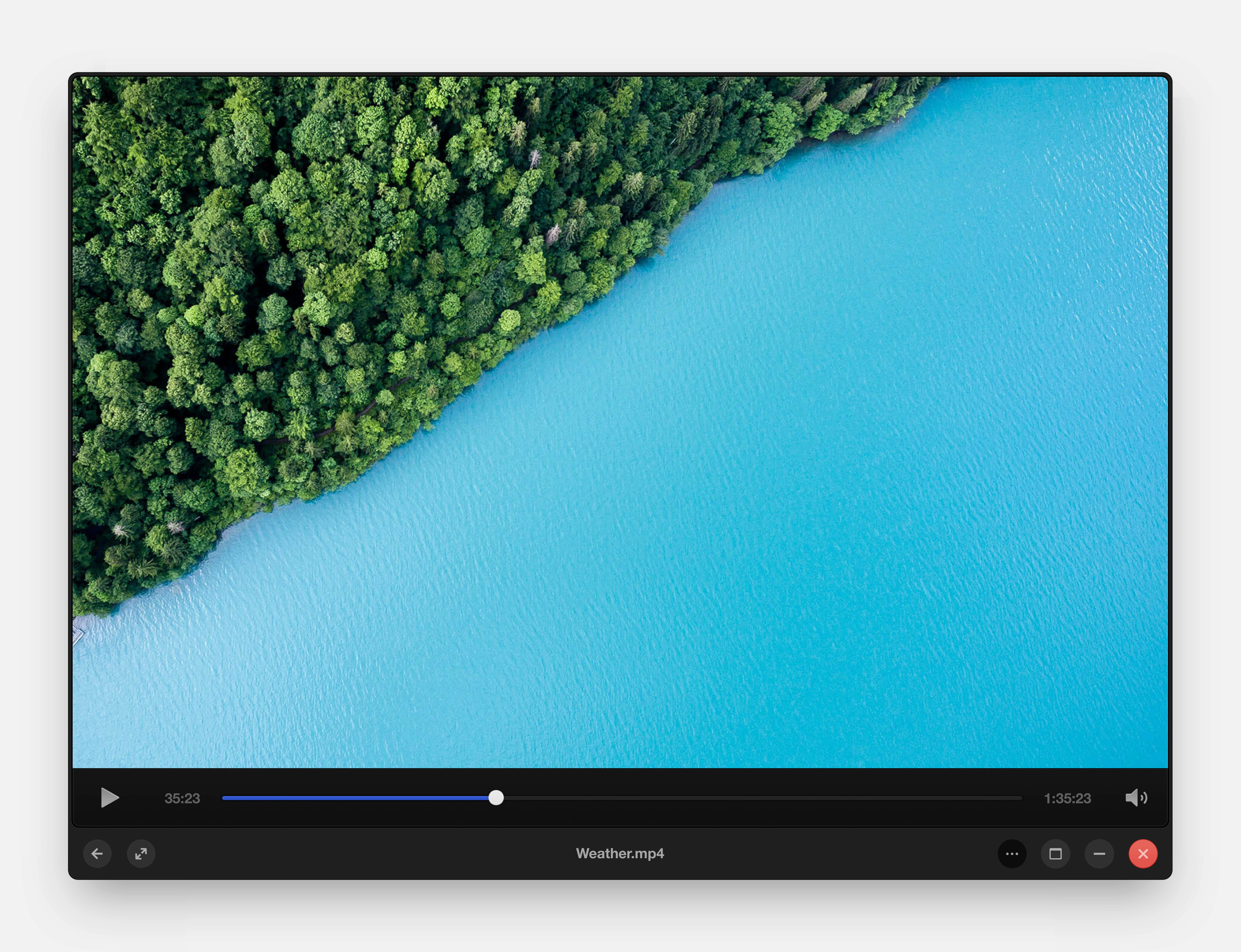
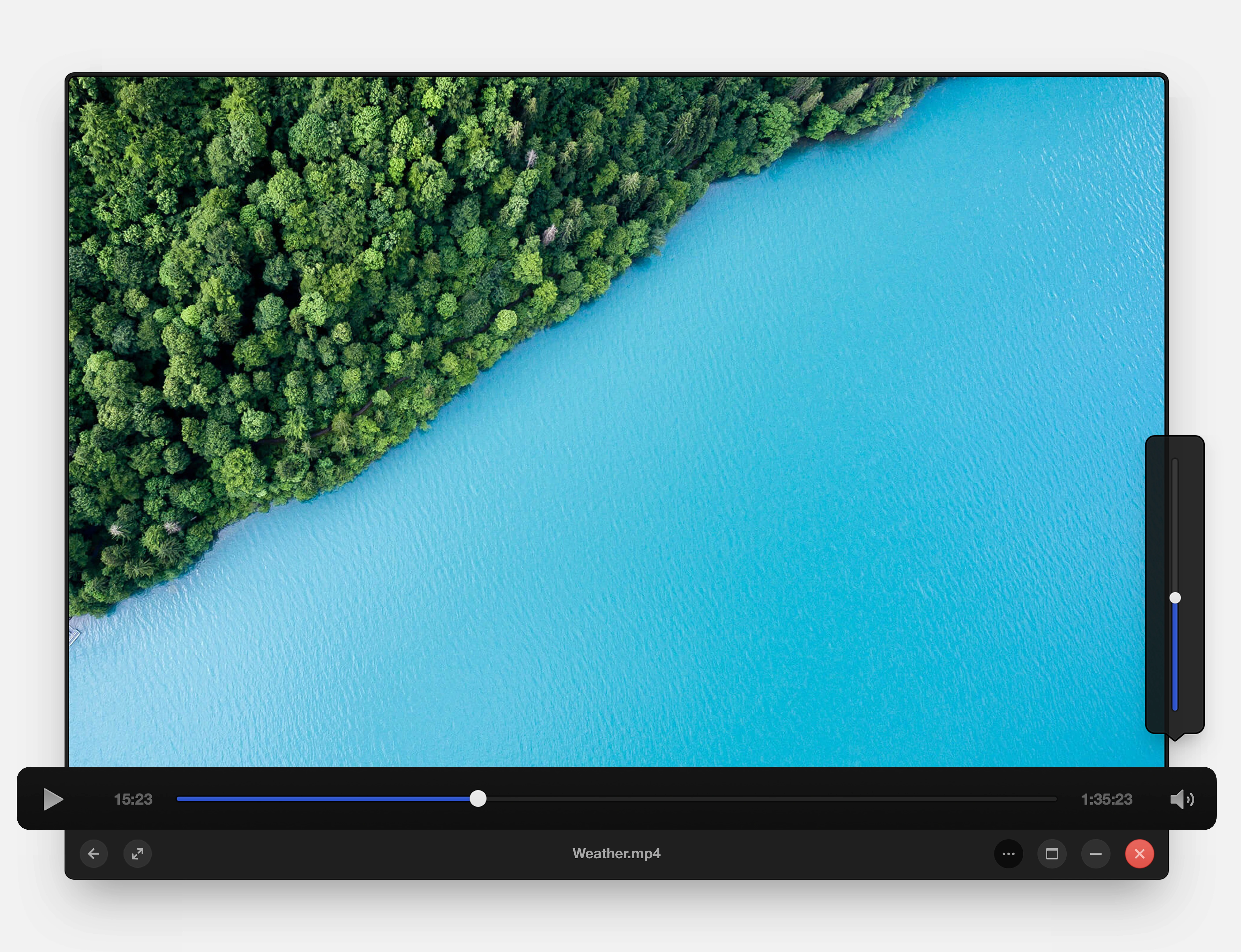
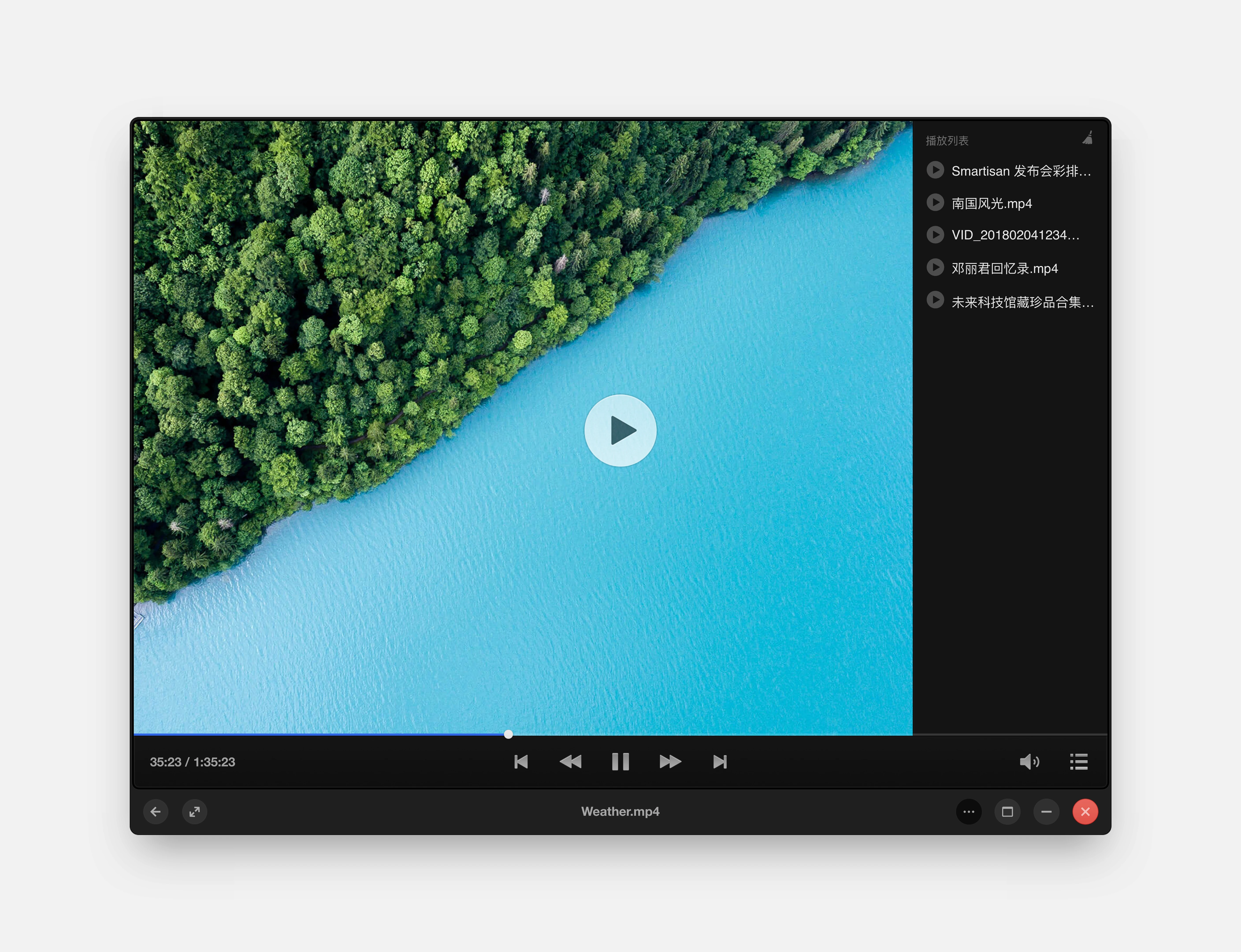
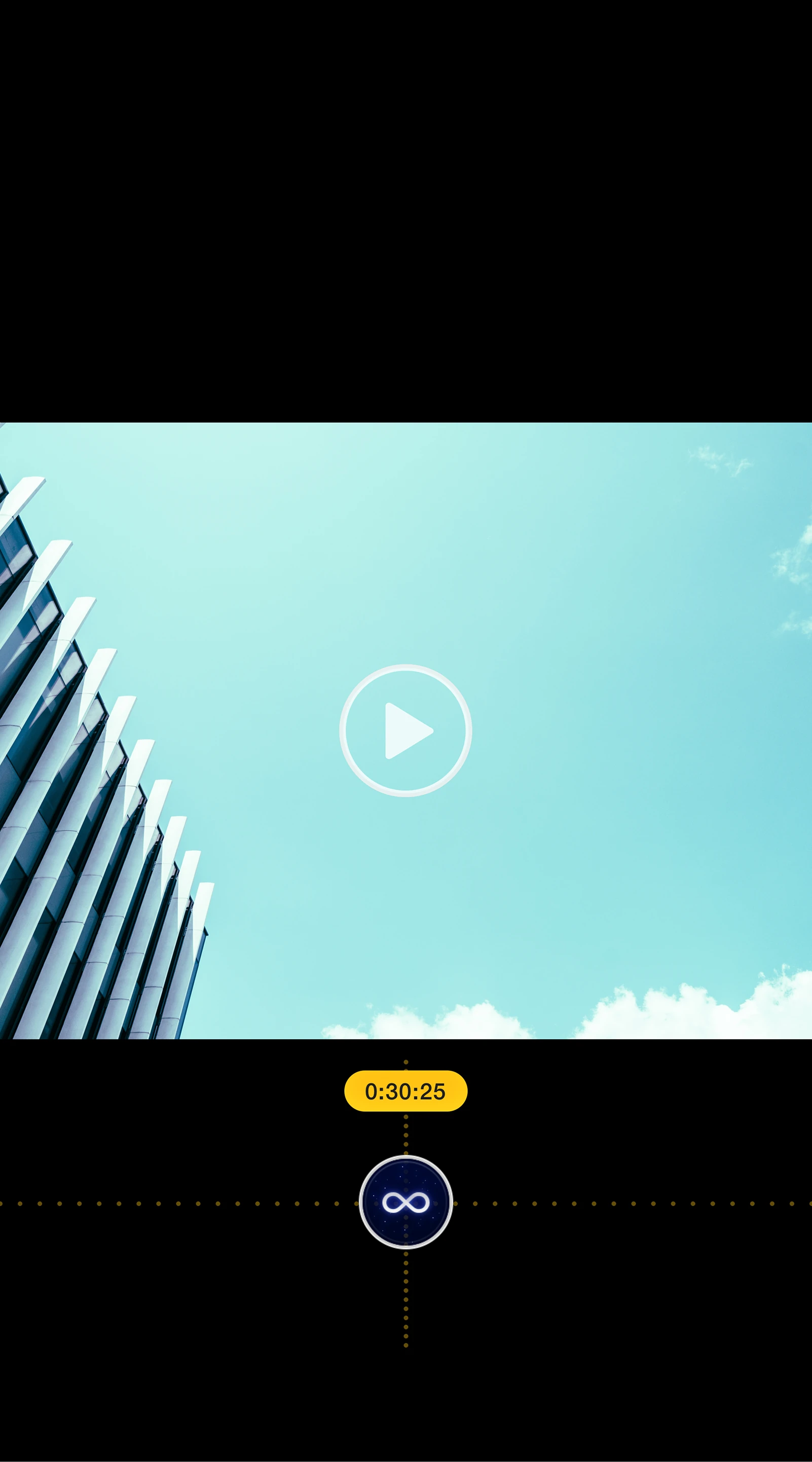
The video player uses a single-column structure, with full-screen presentation for immersive playback
Video Player
Controls such as the progress bar are hidden when inactive and reappear on tap